
Get started
The Home page
What needs you today, how your accounts did last week and the shortcuts to act, on a single screen when you open Ads Editor.
Quick answer
Click Home at the top of the menu. A new account sees Set up the essentials, with the first four steps. Once you have connected, you see Needs you today (what is stuck or needs action), Your week (Meta Ads and Google Ads in the last closed week), Account balances and Creative fatigue. Each item opens the right screen to fix it.
Before you start
- Home is the first screen when you sign in and sits at the top of the side menu.
- Each block only shows for people who have access to its page: without Monitor Balance there is no balance block, without AI Optimization there are no AI suggestions. Team members only see the accounts shared with them.
- The page uses what Ads Editor has already stored, so it opens fast. Your week is the last closed week, not today.
Step by step
A tour of the page, from top to bottom.
- 1
Open Home
In the side menu, click Home. On a new account, the page shows Set up the essentials: 4 short steps, each one checked off on its own when you complete it. After you connect an ad account, the page starts showing what needs you.
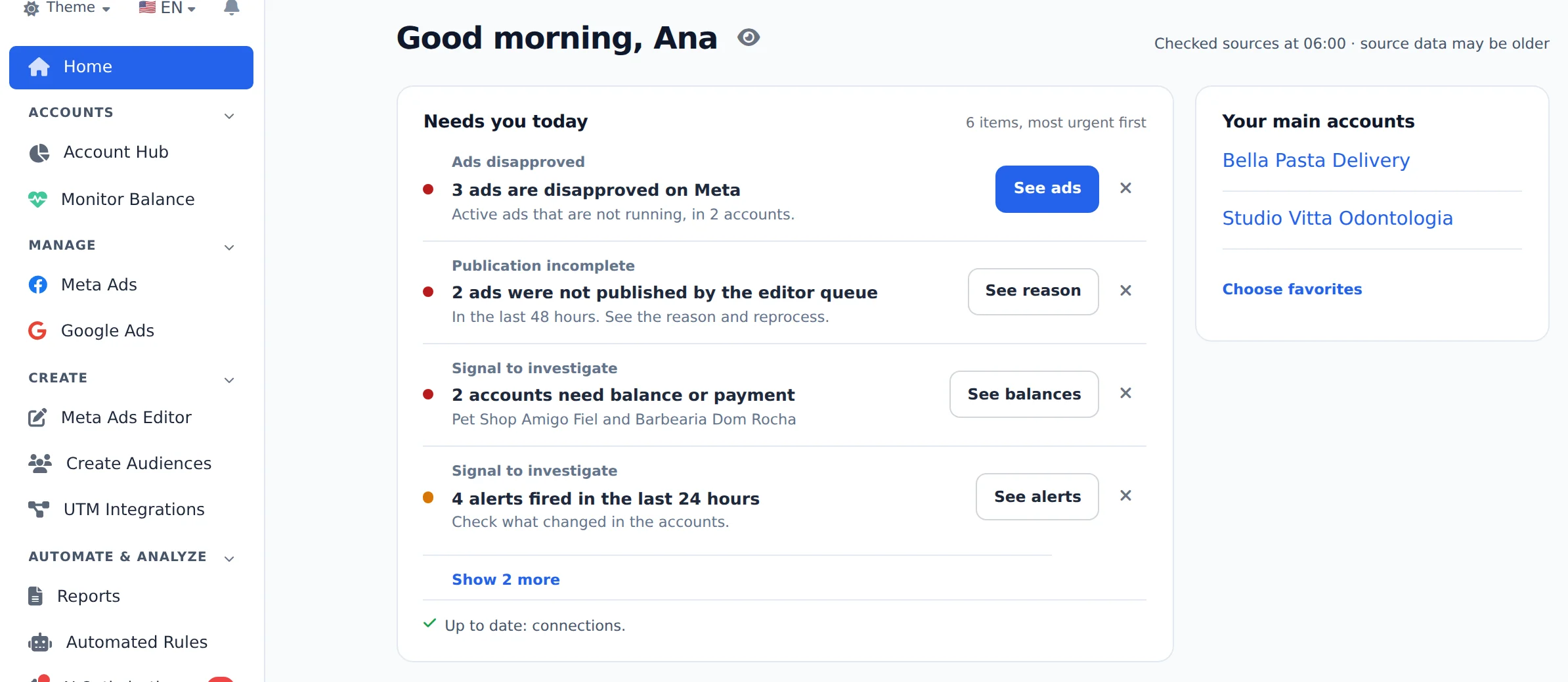 123
- 1Home, at the top of the menu
- 2Needs you today
- 3Your main accounts
- 2
Deal with what needs you today
Needs you today lists what needs action, most urgent first: a connection that dropped, an ad the editor queue could not publish, ads disapproved on Meta and Google, balance running out, alerts and AI Optimization suggestions awaiting your review. Click the item: for disapproved ads, suggestions and incomplete publications, it opens the list account by account, with a link to the right place. Show more shows the rest.
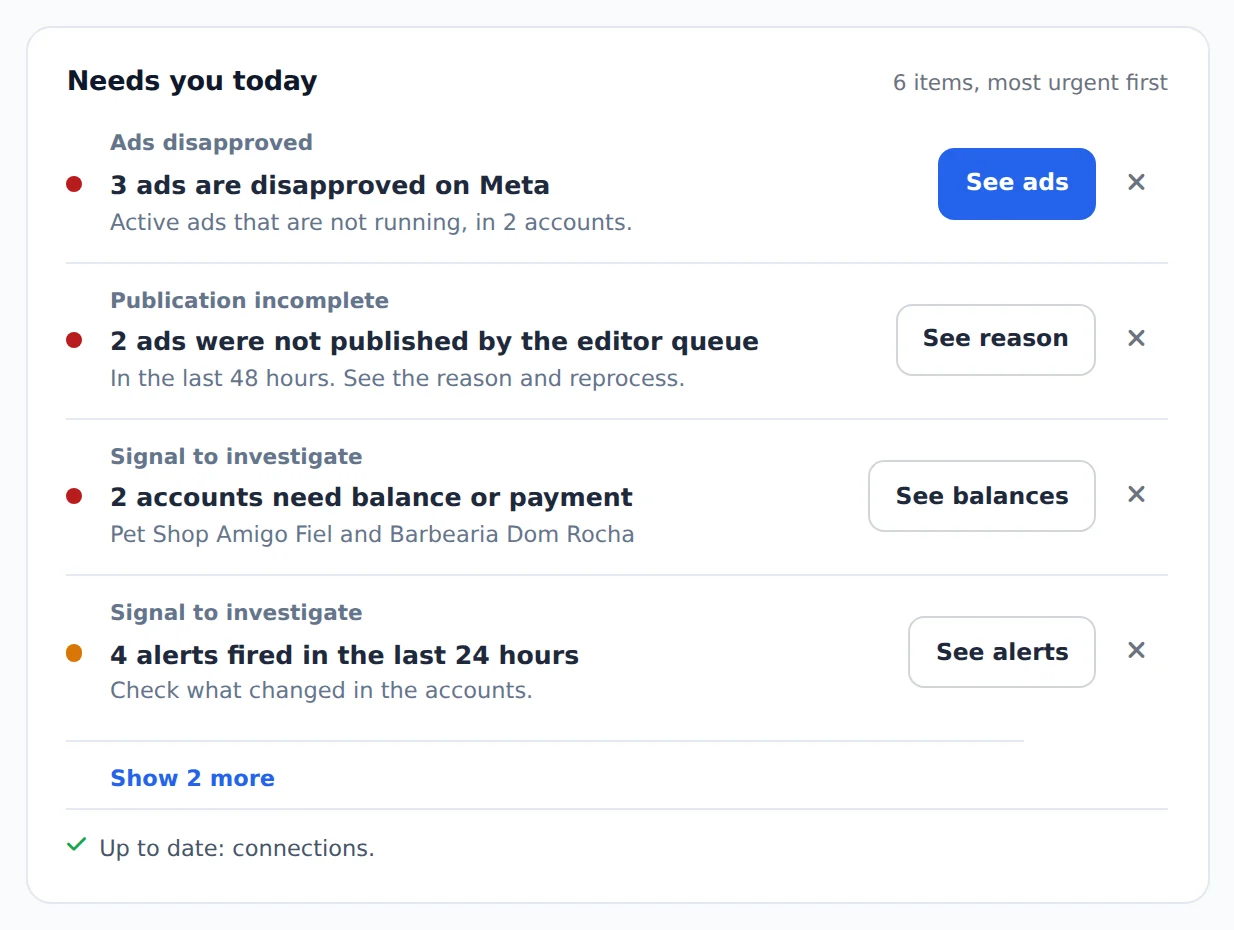 123
- 1The most urgent warning comes first
- 2The button opens the list or the right screen, and the X dismisses the warning
- 3Show more
- 3
Mark what you have handled
In the list of a warning, Already reviewed removes the item from your Home, and Mark all as reviewed does it in one go. The item comes back on its own if anything changes in it. To remove a whole warning, use Dismiss this warning. This applies only to you: other team members still see it.
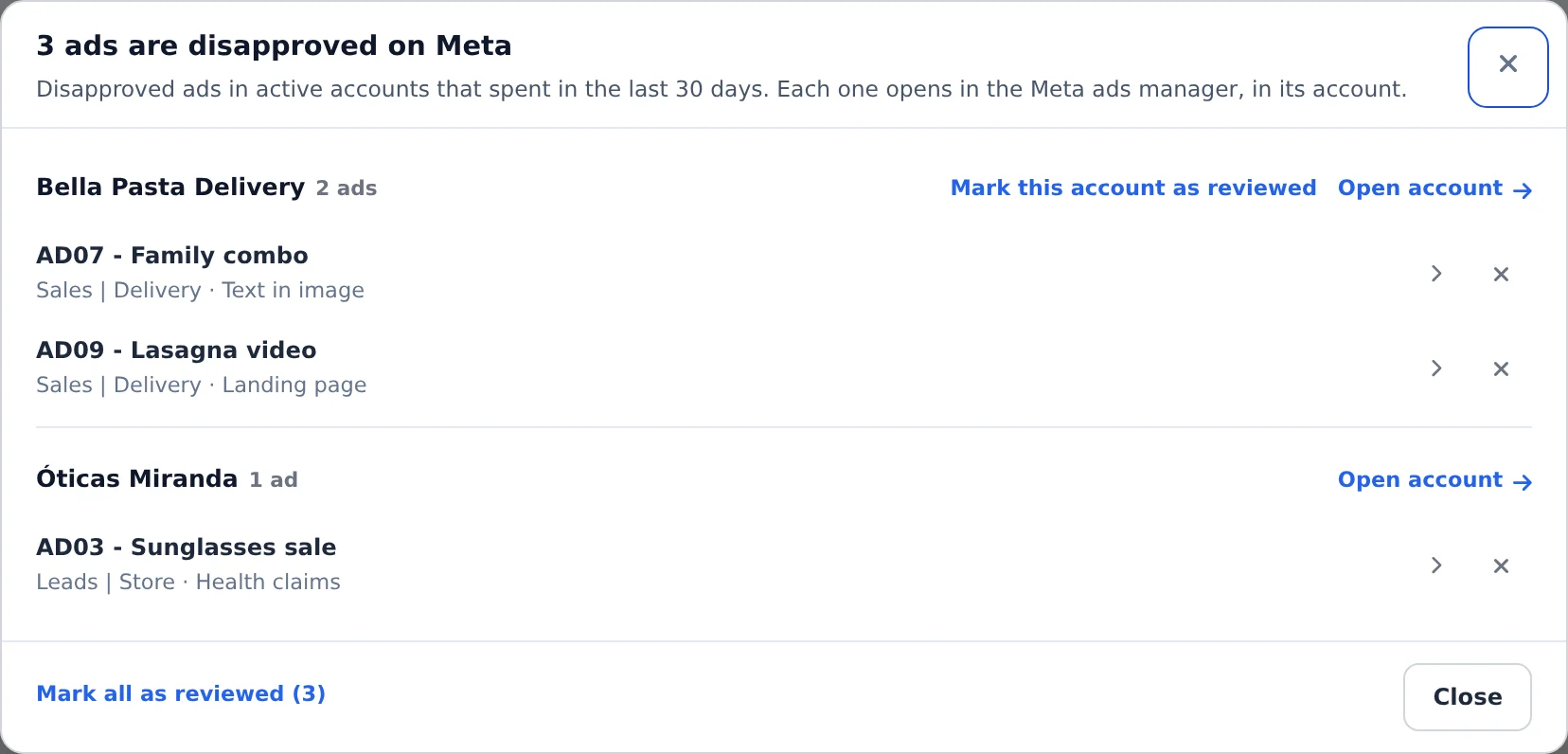 12
- 1The X on each item marks it as Already reviewed
- 2Mark all as reviewed
- 4
Read your week
Your week sums up the last closed week of your Meta Ads and Google Ads accounts. How your main accounts are doing shows your favorites, the same ones starred in the manager, with cost per result and ROAS. Starring or unstarring an account here changes it there too.
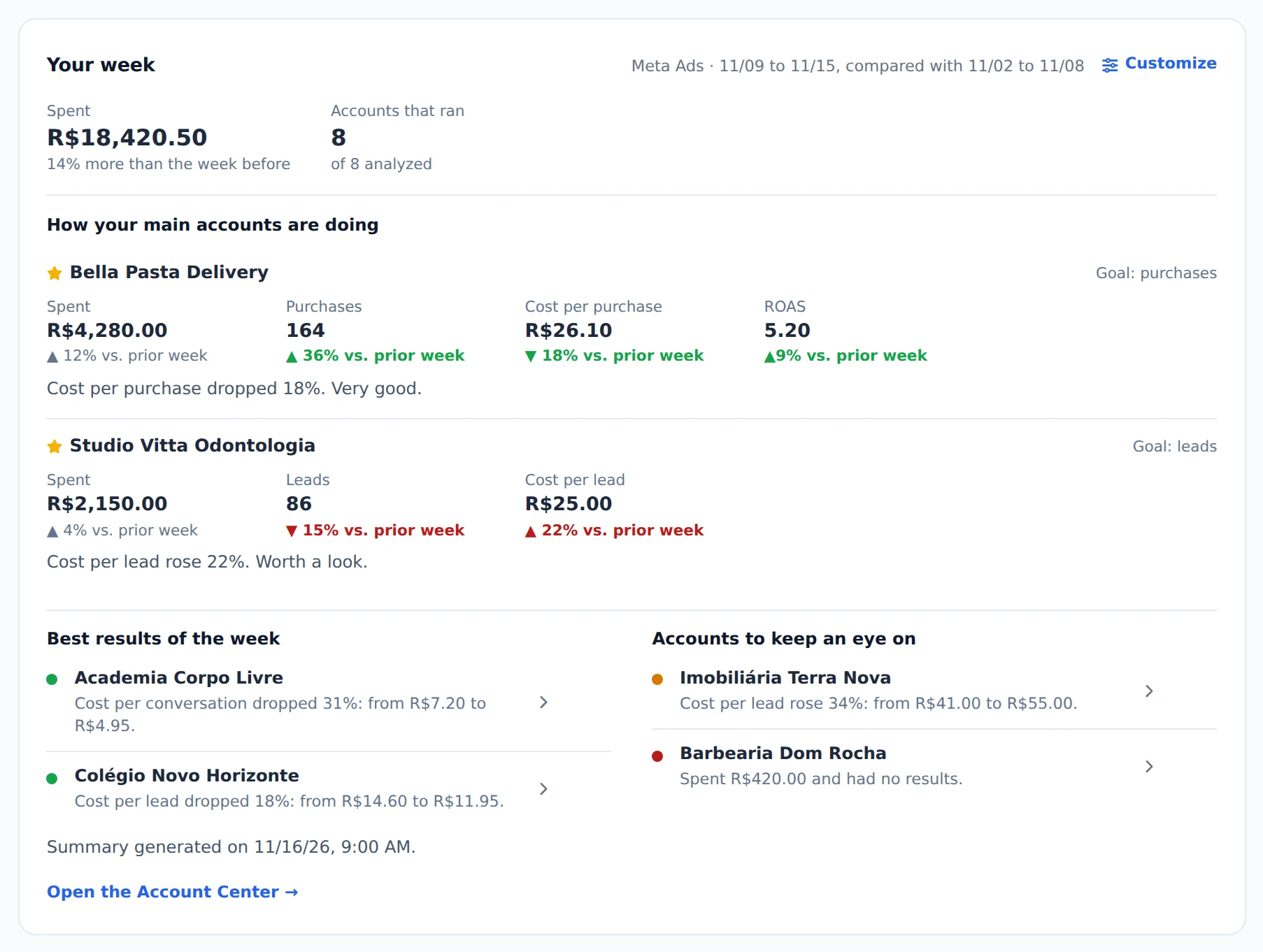 123
- 1Spent and accounts that ran
- 2How your main accounts are doing
- 3Best results of the week
- 5
Check balance, creatives, optimization and team
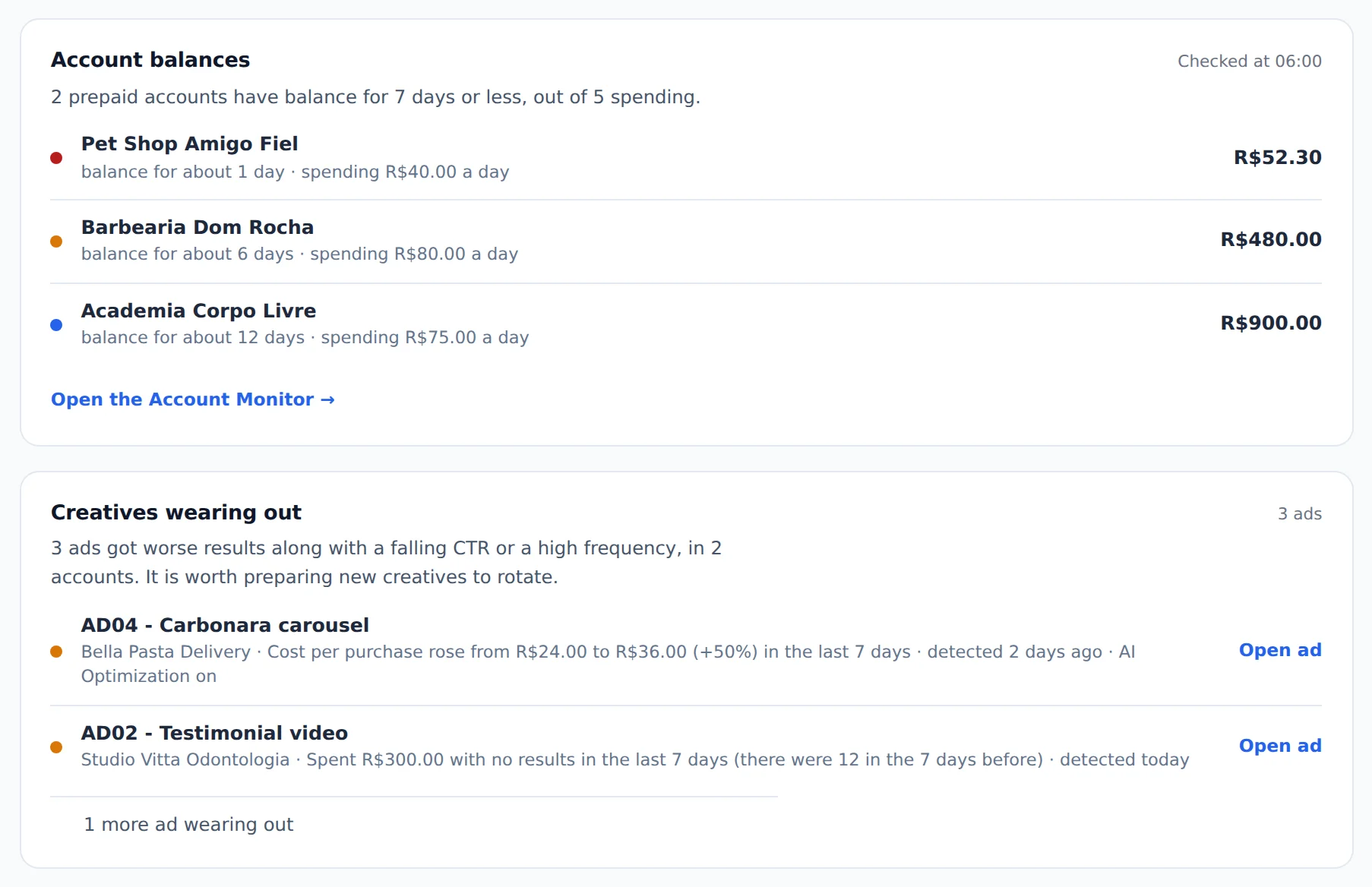
Account balances shows the prepaid accounts closest to running out. Creative fatigue lists the ads whose results dropped in the last 7 days compared with the 7 before, and each one opens the ad in Meta Ads. AI Optimization sums up what the optimization did during the week. Team today shows what each member did through Ads Editor in the last 24 hours.
 12
- 1Account balances
- 2Creative fatigue
- 6
Keep only the accounts that matter
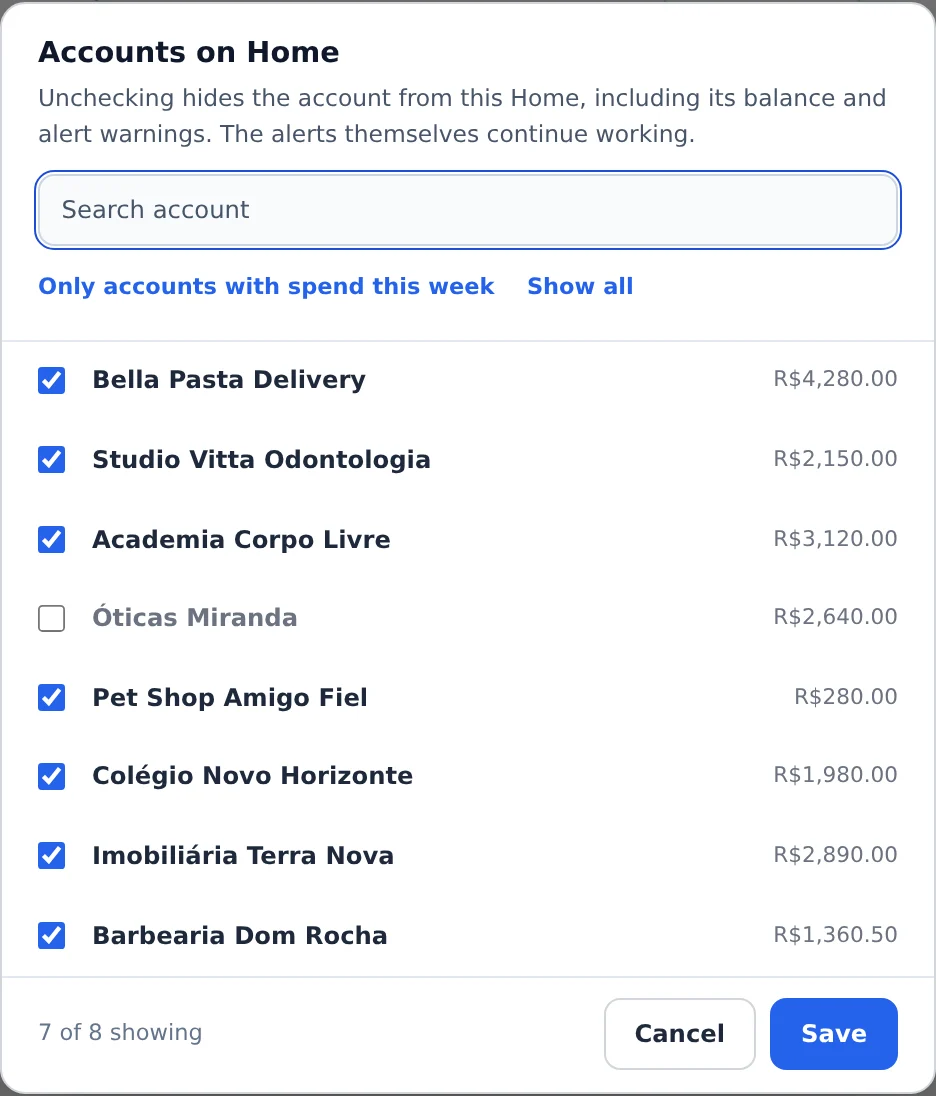
Click Customize to open Accounts on Home and uncheck former clients or accounts you do not want to follow. They leave the weekly summary and the balance and alert warnings on this page. Only accounts with spend this week keeps only the accounts that spent checked.
 123
- 1An unchecked account leaves Home
- 2Only accounts with spend this week
- 3Save
Ask the Copilot about all your accounts
Under Ask the Copilot about your accounts, type a question or use one of the ready-made ones, such as "Which accounts need attention?". It reads the last closed week of all your Meta Ads and Google Ads accounts and what needs you today, and answers right on Home. For today’s numbers, pick the account inside the Copilot. The Copilot is part of the Pro plan and above and uses AI credits; on Starter, the block shows the Pro badge.
Your month on Ads Editor
From the 1st to the 7th of each month, the Your month on Ads Editor card shows what worked for you in the previous month: the actions taken by automated rules, the AI Optimization adjustments and the alerts you received. Each line opens its own page. Close the card whenever you like.
How to tell it worked
- An item marked Already reviewed leaves the list right away.
- An account unchecked in Customize disappears from Your week and from the warnings on this page. Nothing changes in the Account Hub or in the alerts themselves.
If something goes wrong
| Symptom | Likely cause | What to do |
|---|---|---|
| Your week has not shown up yet | The weekly summary is being prepared | Reload the page in a moment |
| A block does not show for me | You are a team member and the page for that block was not shared with you | Ask the account owner to share the page in Team |
| An account disappeared from Home | It was unchecked in Customize | Open Customize and check the account again |
| A notice says not everything could be checked right now | A data source did not respond in time | The shortcuts still work. Reload the page in a moment |
Frequently asked questions
What is the "Creative fatigue" notice and where does it show up?
Every 12 hours, Ads Editor checks the active ads of the Meta accounts where you have AI Optimization or took an action through Ads Editor in the last 30 days. An ad gets the notice when the result the campaign is after (purchase, lead, WhatsApp conversation, registration...) got worse last week compared with the week before, along with a falling link CTR or a high frequency. A rising cost on its own does not count, since it may just be a pricier auction.
The notice shows on Home, under Creative fatigue, with the ad, the account, what got worse and a link that opens the ad in Meta Ads. If the account has AI Optimization, it also shows on the optimization card. It does not go to the bell or to phone notifications, so it does not fill your day with alerts. Nothing is paused on its own: changing the creative is your call.
The card has no off switch. An ad leaves the list on its own when the following checks no longer flag it, and under Needs you today you can use Already reviewed to take it off your list.
Team members with access to Meta Ads and to the account also see the list on their Home.
What is the Home page and how do I choose what shows on it?
Home is the first screen in Ads Editor. It brings together what needs your action and a summary of your accounts:
- Needs you today: a connection that dropped, an ad that was not published, disapproved ads, balance running out, alerts and AI Optimization suggestions awaiting review.
- Your week: the summary of the last closed week for your Meta Ads and Google Ads accounts.
- Account balances, Creative fatigue, AI Optimization and Team today.
- From the 1st to the 7th of each month, the Your month on Ads Editor card shows the rule actions, the AI Optimization adjustments and the alerts from the previous month.
To adjust what shows:
- Customize opens Accounts on Home: uncheck the accounts you do not want to follow. They leave the summary and the balance and alert warnings on this page. Nothing changes in the Account Hub or in the alerts themselves.
- Already reviewed removes an item from the list. It comes back on its own if anything changes.
- Dismiss this warning removes the whole warning.
These choices apply only to you. Team members see on Home only the pages and accounts shared with them.
See also
Getting to know the menuAds Editor in 10 minutesAccount balance monitorTalk to the AI Copilot