
Meta Ads Editor
Catalog ads and product management
Turn each photo or video into a product, a product set and a catalog ad at once, and manage products and sets without leaving Ads Editor.
Quick answer
In the Meta Ads Editor, open the Catalog Ad tab and check A new set for each media file: each photo or video becomes a product, a product set of its own and an ad in each chosen ad set. To create, edit or replace the media of products and sets, use Manage products and sets, which also creates and edits in bulk.
Watch the walkthrough 1:27
Before you start
- If you connected Meta before 10/27/2026, reconnect once: go to Connect Meta, reconnect the profile and allow catalog access. Without it, the screen shows Partial list or asks you to reconnect.
- Choose one ad account. The campaign can be a catalog campaign or a regular sales campaign.
- Photos as JPG or PNG up to 8 MB, videos as MP4 or MOV up to 95 MB. For videos, the thumbnail becomes the product image.
- Meta does not accept an empty product set: the product is created first, and the set comes after Meta finishes processing it. Ads Editor handles this wait for you.
Step by step
In this example, a delivery restaurant turns photos of menu dishes into catalog products and catalog ads.
- 1
Open the Catalog Ad tab
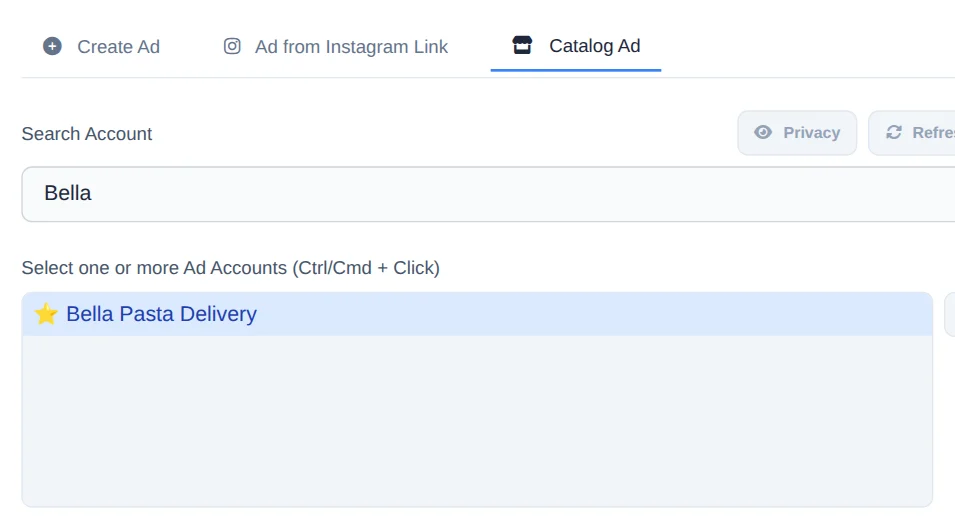
In the Meta Ads Editor, pick the account and the campaign and click the Catalog Ad tab. Under Select Ad Sets, tick the ad sets that will get the ads.
- 2
A new set for each media file
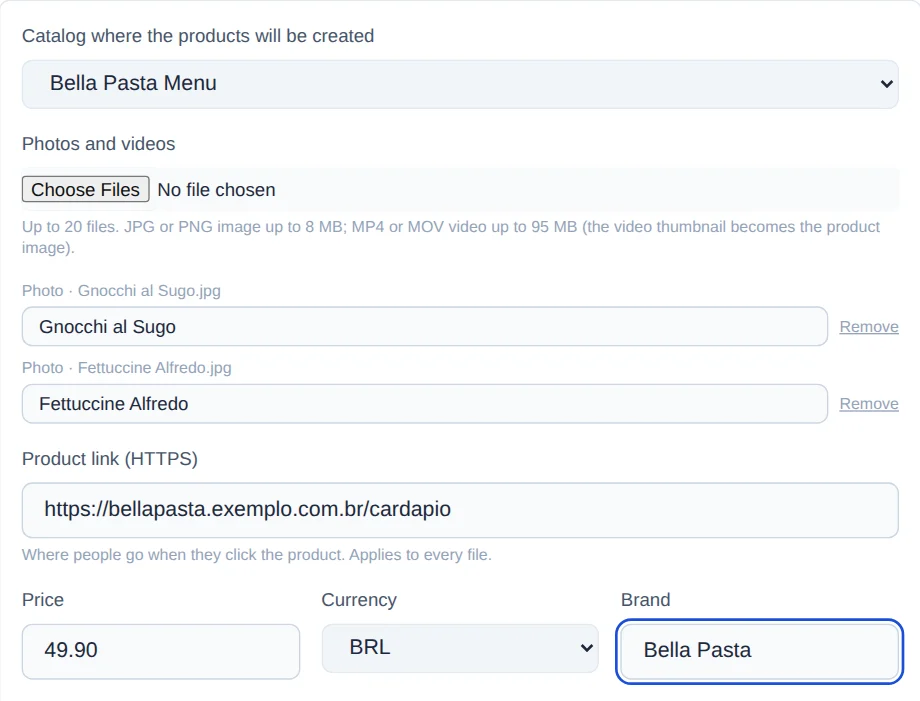
Under Where the ad products come from, check A new set for each media file. Pick the catalog and the photos or videos (up to 20). Each product name comes from the file name and can be changed in the list. Product link, Price and Brand apply to every file.
- 3
Create the catalog ads
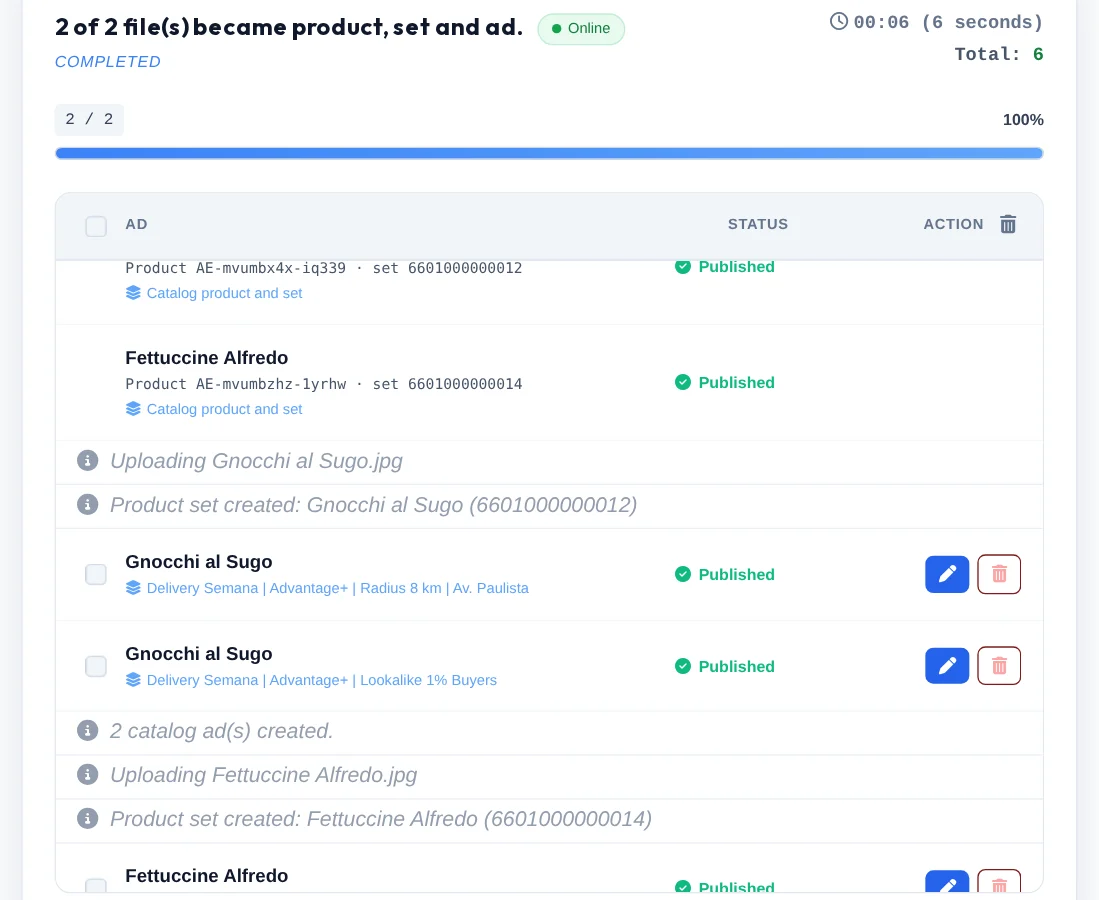
Click Create Catalog Ads. For each file, Ads Editor creates the product, waits for Meta to process it, creates a product set with only that product and publishes an ad in each chosen ad set. The panel shows the progress of each one. If you want, check Replace this media on for the file, pick the date and time (Brasília time) and upload the second file. The ad goes live with the current media. At the chosen time, that product's image or video is replaced. The set and the ad stay the same.
- 4
Manage products and sets
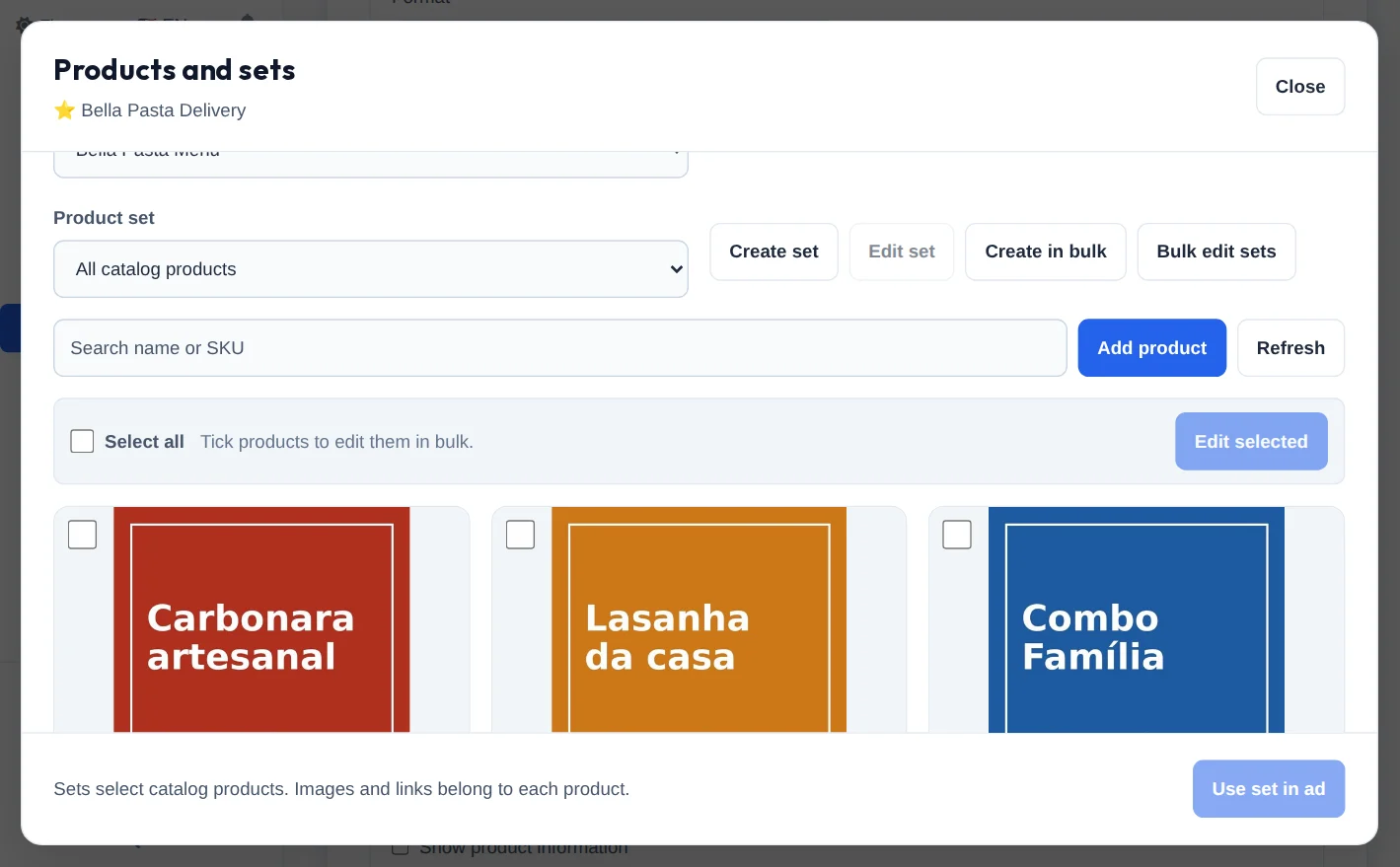
Click Manage products and sets. Pick the catalog and the set to see the products. Add product creates a product with an image and, if you want, a video. Edit product changes the name, link, description, image or video. Create set groups the products you choose, and Use set in ad brings the set into the ad.
- 5
Create in bulk
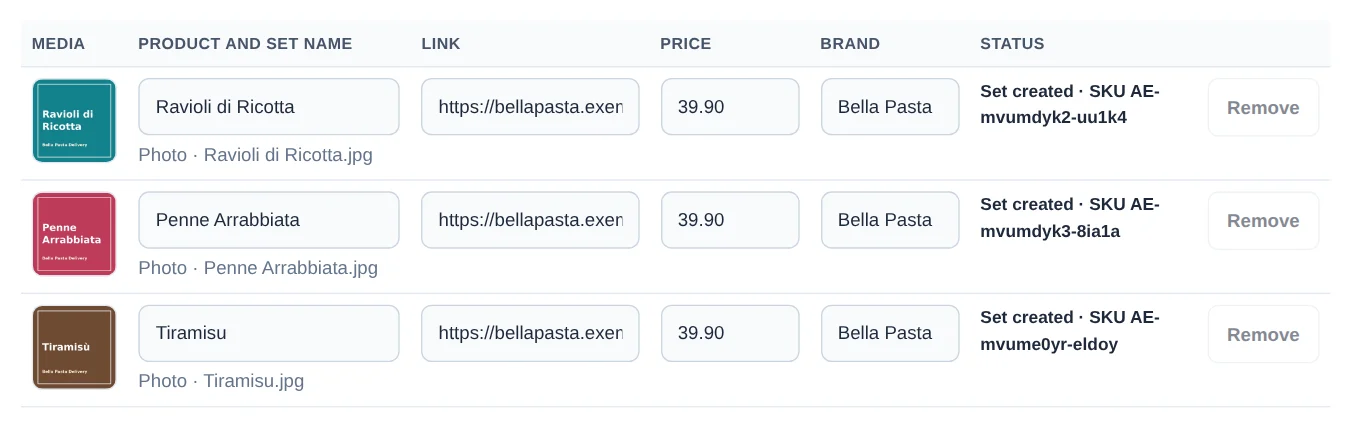
Click Create in bulk and choose up to 20 photos or videos: each one becomes a product in a product set of its own, with the same name, without publishing an ad. Fill in the Default values and click Apply to all, or adjust name, link, price and brand on each row. Then click Create sets.
- 6
Edit in bulk
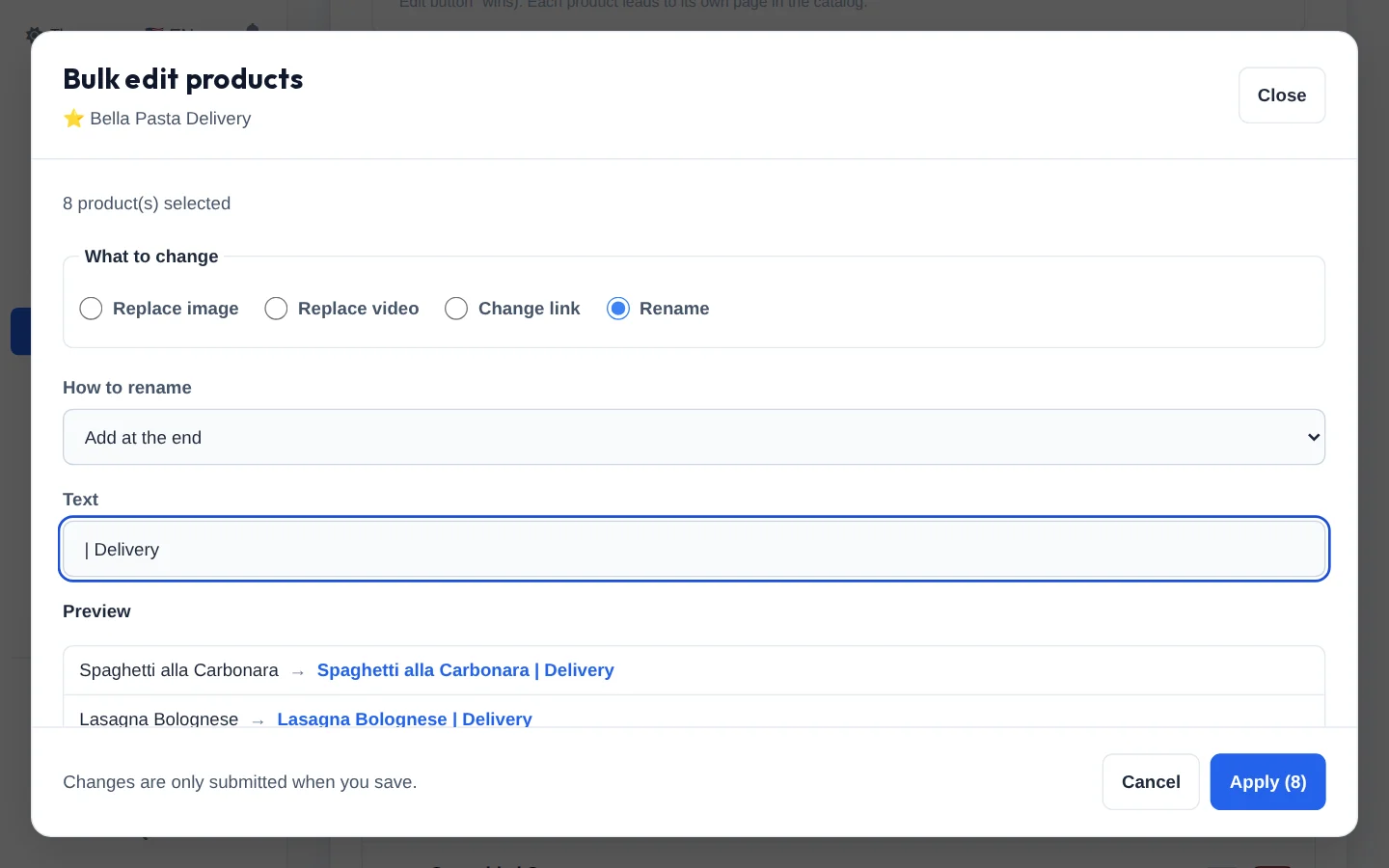
Tick the products (or Select all) and click Edit selected. Choose Replace image, Replace video, Change link or Rename, check the preview and click Apply. For several sets at once, use Bulk edit sets.
Replace the media while the ad is live
You do not need to go to Meta's catalog manager. Right here in the editor, on the Catalog Ad tab, click Manage products and sets, open the product with Edit product and use Replace image or Replace video. The ad then shows the new media, without a new ad. For several products at once, tick them and use Edit selected. To schedule the swap for a Brasilia time while creating the ad, see Replace catalog media.
The change applies to every ad of the product
Replacing a product image, video or link changes what it shows in every set and ad. If your store sends a feed to the catalog, the next sync may undo the change.
In the chat: Copilot and MCP
- The Copilot and the MCP (Claude, ChatGPT) do the same in the chat: list catalogs, sets and products, create products and sets, replace media and create catalog ads.
- In the chat you can also schedule a media swap for a Brasilia time and, if you ask, apply the pending ones now. Before applying, the chat shows the name and time of each one and waits for your confirmation.
- Before saving, they show what they will do and ask for your confirmation.
How to tell it worked
- The upload panel shows one ad per ad set, with the product name.
- In Manage products and sets, the new product and set show up in the catalog list.
- In Meta Commerce Manager, the product shows the uploaded image.
If something goes wrong
| Symptom | Likely cause | What to do |
|---|---|---|
| Partial list or a request to reconnect shows up | The profile was connected without catalog access | In Connect Meta, reconnect the profile and allow catalog access |
| The catalog selector is locked | The chosen campaign already uses a catalog: the product has to be created in it | Use that catalog or choose another campaign |
| "The chosen campaigns use different catalogs" | Campaigns from different catalogs in the same upload | Choose campaigns from the same catalog |
| A row of the bulk creation failed | Meta rejected that product (the reason shows on the row) | Fix the row and click Retry the failed ones: only that row is sent again |
| The product has not shown up in the set yet | Meta is still processing the product | Wait a moment and click Check processing |