
Meta Ads Editor
Replace catalog media
Pick the time when a catalog product photo or video should be replaced. The ad goes live now and the media changes at the chosen time.
Quick answer
On the Catalog Ad tab, with A new set for each media file, check Replace this media on for the file, pick the date and time (Brasilia time) and upload the second file. The ad goes live with the current media. At the chosen time, that product image or video is replaced. The set and the ad stay the same.
Watch the walkthrough 0:41
Before you start
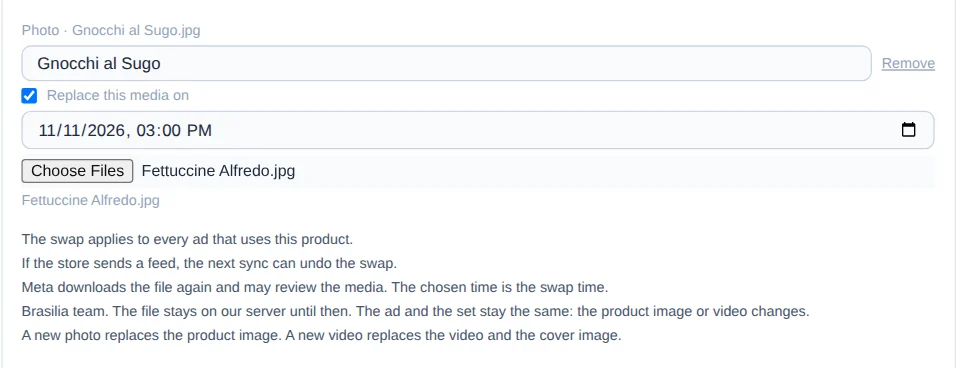
- The swap applies to the product: every ad that uses it starts showing the new media.
- The time is Brasilia time. The second file stays on the Ads Editor server until then, from 2 minutes to 90 days ahead.
- Meta downloads the file again and may review the media. The chosen time is the swap time, and the swap can run about 1 minute late.
- If the store sends a feed, the next sync can undo the swap. A new photo replaces the image. A new video replaces the video and the cover image.
Step by step
In this example, Bella Pasta publishes the gnocchi ad now and schedules the fettuccine photo for a Brasilia time.
- 1
Open the Catalog Ad tab
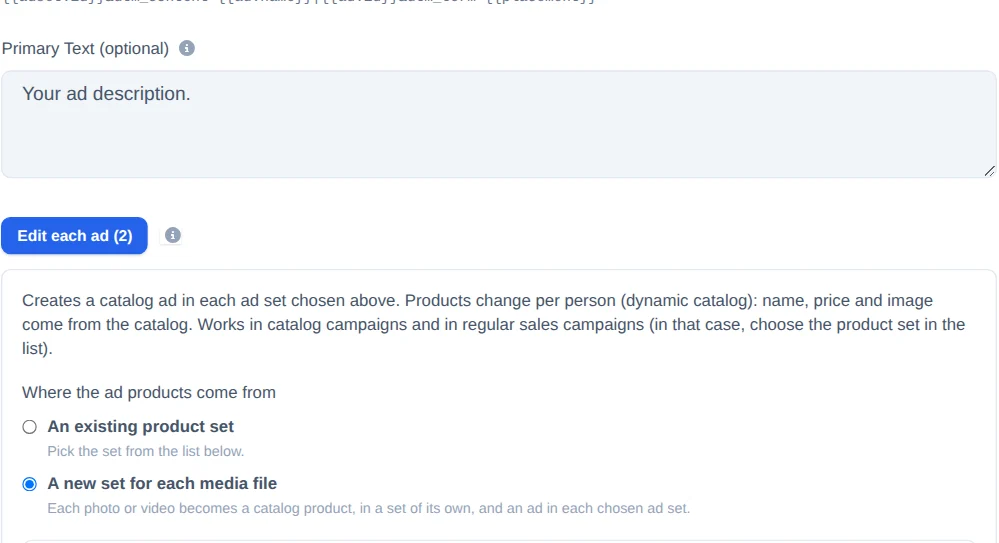
In the Meta Ads Editor, pick the account and the campaign and click the Catalog Ad tab. Tick the ad sets. Under Where the ad products come from, check A new set for each media file.
- 2
Choose the media that goes live now
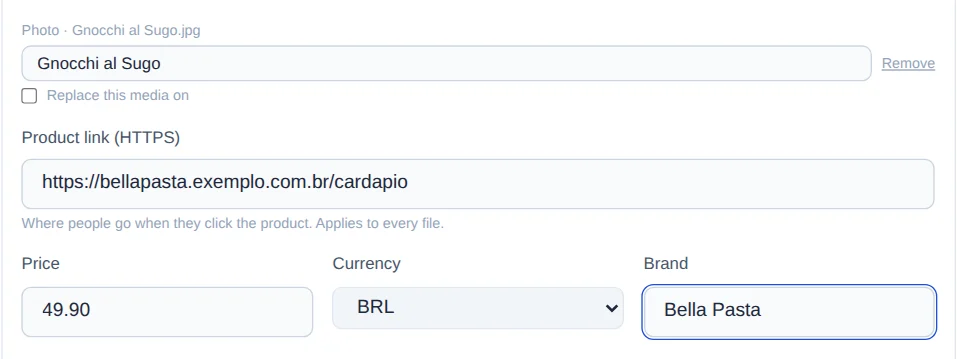
Choose the photo or video the ad shows now. The product name comes from the file name. Fill in Product link, Price and Brand.
- 3
Check Replace this media on
On the file, check Replace this media on, pick the date and time and upload the replacement file. The screen says the swap applies to every ad of that product.
- 4
See the scheduled swap
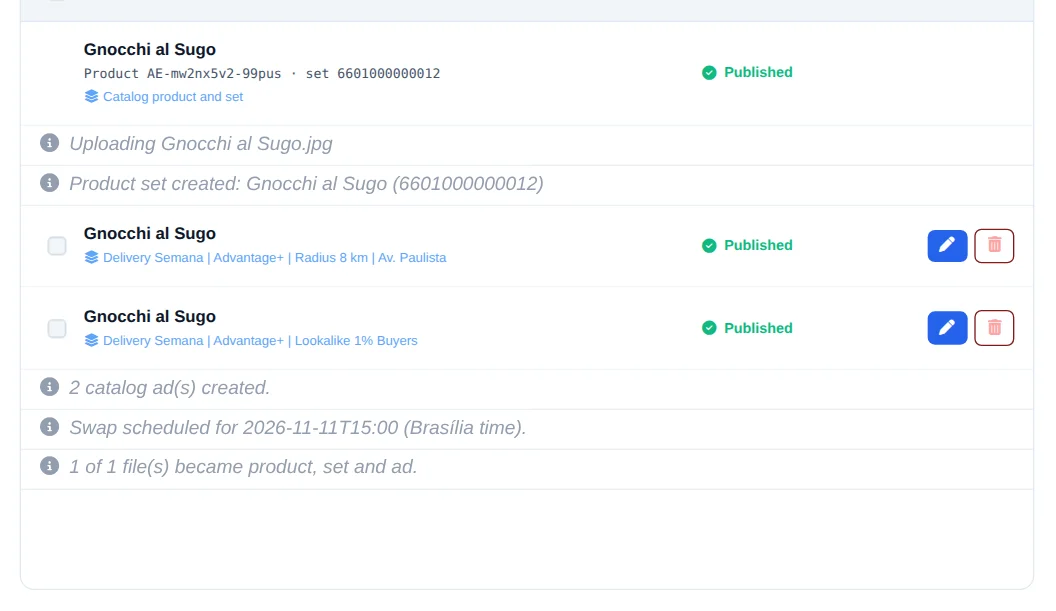
Click Create Catalog Ads. The panel creates the product, the set and the ad, and writes Swap scheduled for, with the Brasilia date and time.
Through Copilot or MCP
In the chat, ask to schedule a media swap for a Brasilia time. To apply the ones already pending, say change the catalog media now. The chat lists the name and time of each one and waits for your confirmation. It does not create a new swap and it does not touch a product that has no pending swap.
A manual replace is overwritten at the chosen time
If you replace the image under Manage products and sets before the time, the scheduled swap still runs and puts the scheduled file in place. To run it early, say change the catalog media now. There is no way to cancel a scheduled swap from the screen.
How to tell it worked
- The panel writes Swap scheduled for, followed by the Brasilia date and time.
- The live ad keeps the current media until that time.
- At the chosen time, the catalog product starts showing the new media.
If something goes wrong
| Symptom | Likely cause | What to do |
|---|---|---|
| The screen asks for the replacement file | The box is checked and the second file was not chosen | Upload the replacement photo or video |
| The time was rejected | It is under 2 minutes away or more than 90 days ahead | Pick another Brasilia date and time |
| The ad went live and the swap did not | The panel says the ad is live and the swap was not scheduled | Schedule it again through Copilot, or replace the media in Edit product |
| The media went back to the old one | The store sent a feed after the swap | Fix the feed or swap again after the sync |