
Meta Ads
App campaign (App Store and Google Play)
Promote your app to get installs on the App Store or Google Play, creating the campaign with the Meta Ads wizard.
Quick answer
In Meta Ads, click Create campaign and pick the App promotion objective with the App destination. Pick the account app and the store (App Store or Google Play): the Store link comes filled in. Go on with name, budget and ad sets, review and create. Each campaign advertises in one store only.
Watch the walkthrough 0:36
Before you start
- The app must be registered with Meta (developers.facebook.com) and the ad account must be allowed to advertise it. This is done in Meta itself, outside Ads Editor.
- Pick the ad account in the selector at the top first: the campaign is created in it, and the app list is that account’s.
- To advertise on the App Store and Google Play, create two campaigns: one for each store.
- The wizard ends with the campaign and ad sets. The ads go in afterward through the Meta Ads Editor, as with other campaigns.
Step by step
In this example, we create an installs campaign for a delivery app, on the App Store.
- 1
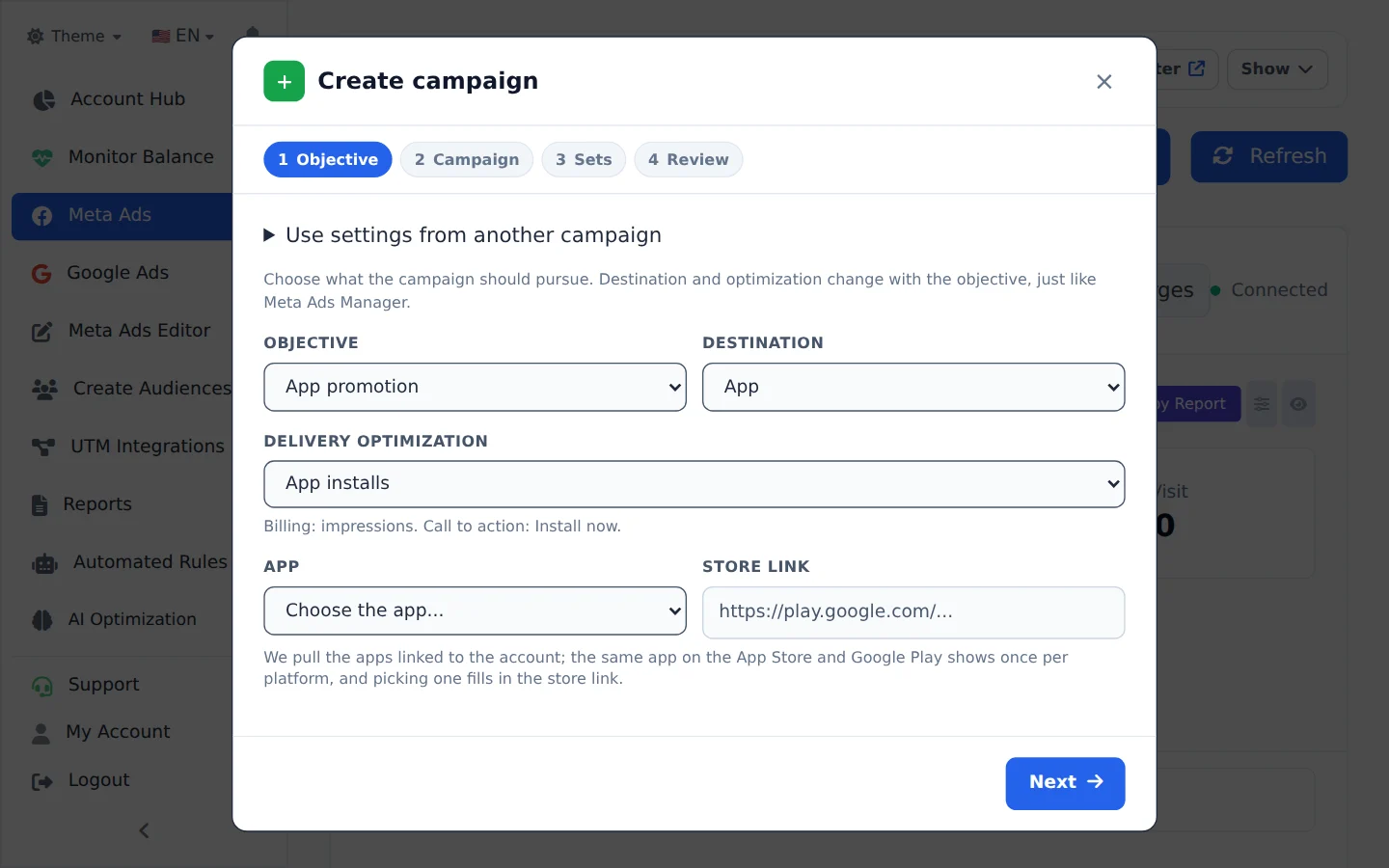
Pick App promotion
Click Create campaign, above the table. In Objective, pick App promotion; in Destination, App. For the optimization, App installs is the most common; Conversions optimizes for an in-app event (a purchase, for example) and Link clicks goes for clicks.
- 2
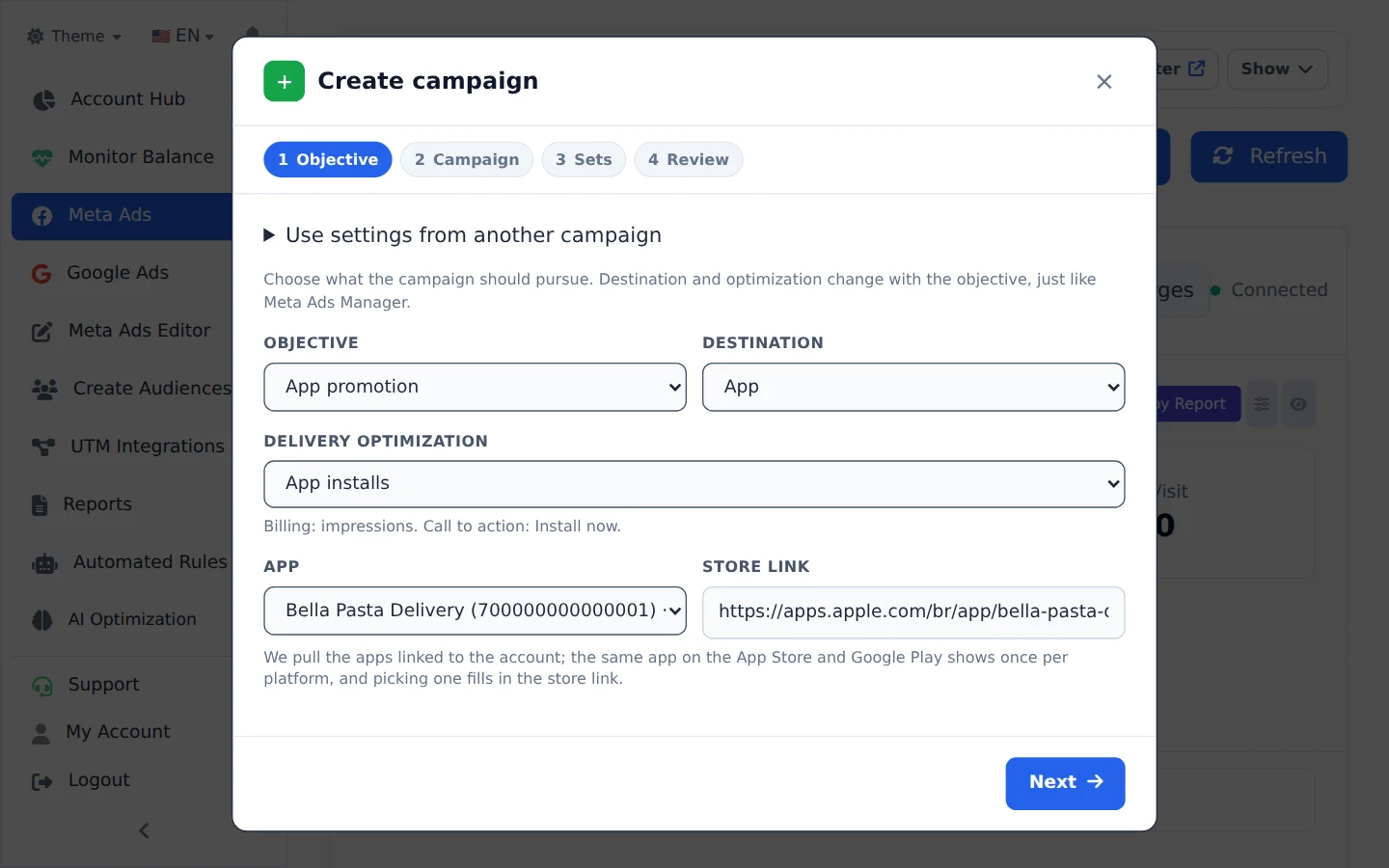
Pick the app and the store
In App, pick the app from the list: when it is in both stores, there is one option for App Store and another for Google Play. The Store link comes filled in. If the app is not on the list, choose Type another ID and enter the app ID registered with Meta. Click Next.
- 3
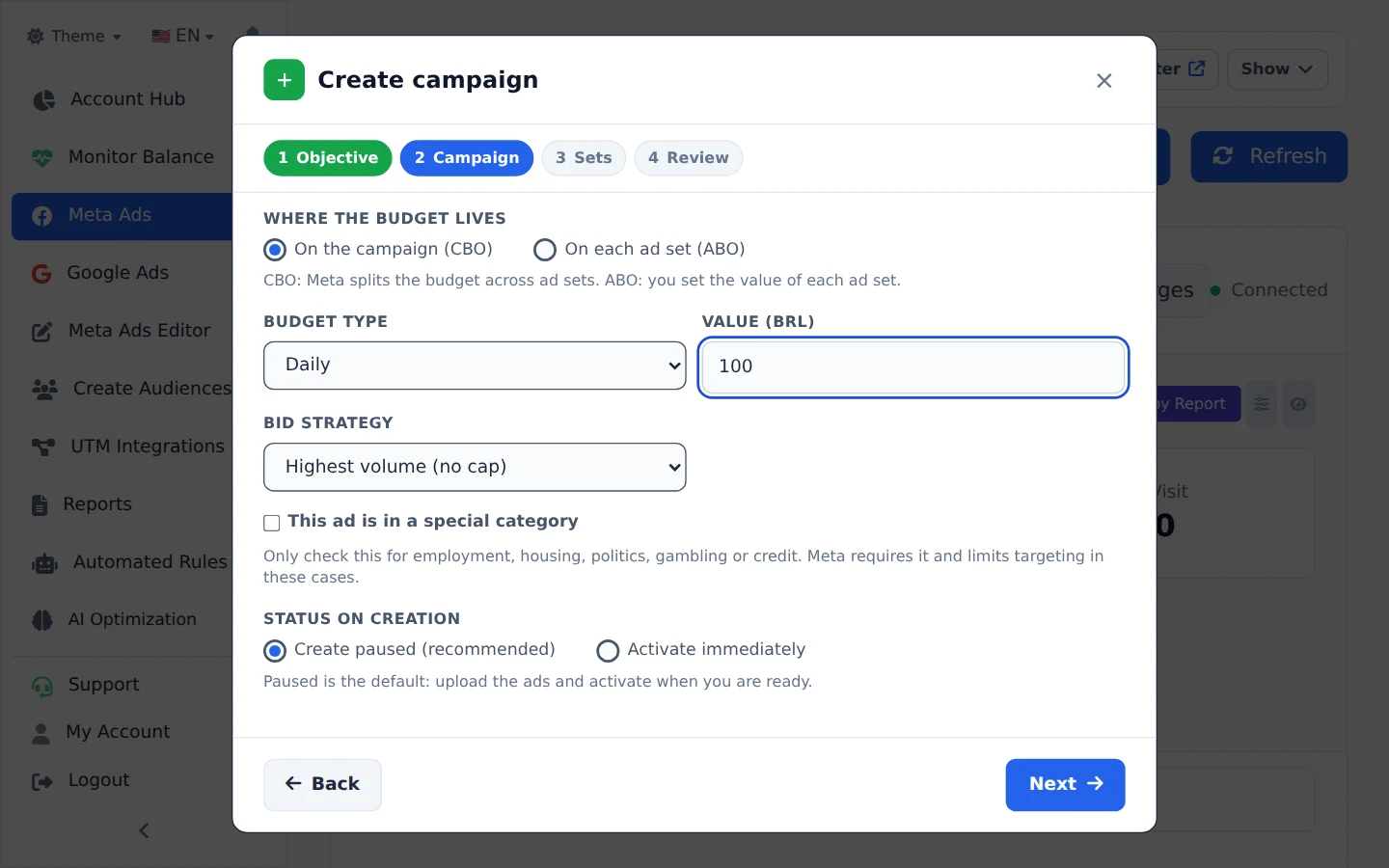
Name and budget
Name the campaign (it helps to include the store, like [APP] Installs iOS), enter the daily budget and the bid strategy. Click Next.
- 4
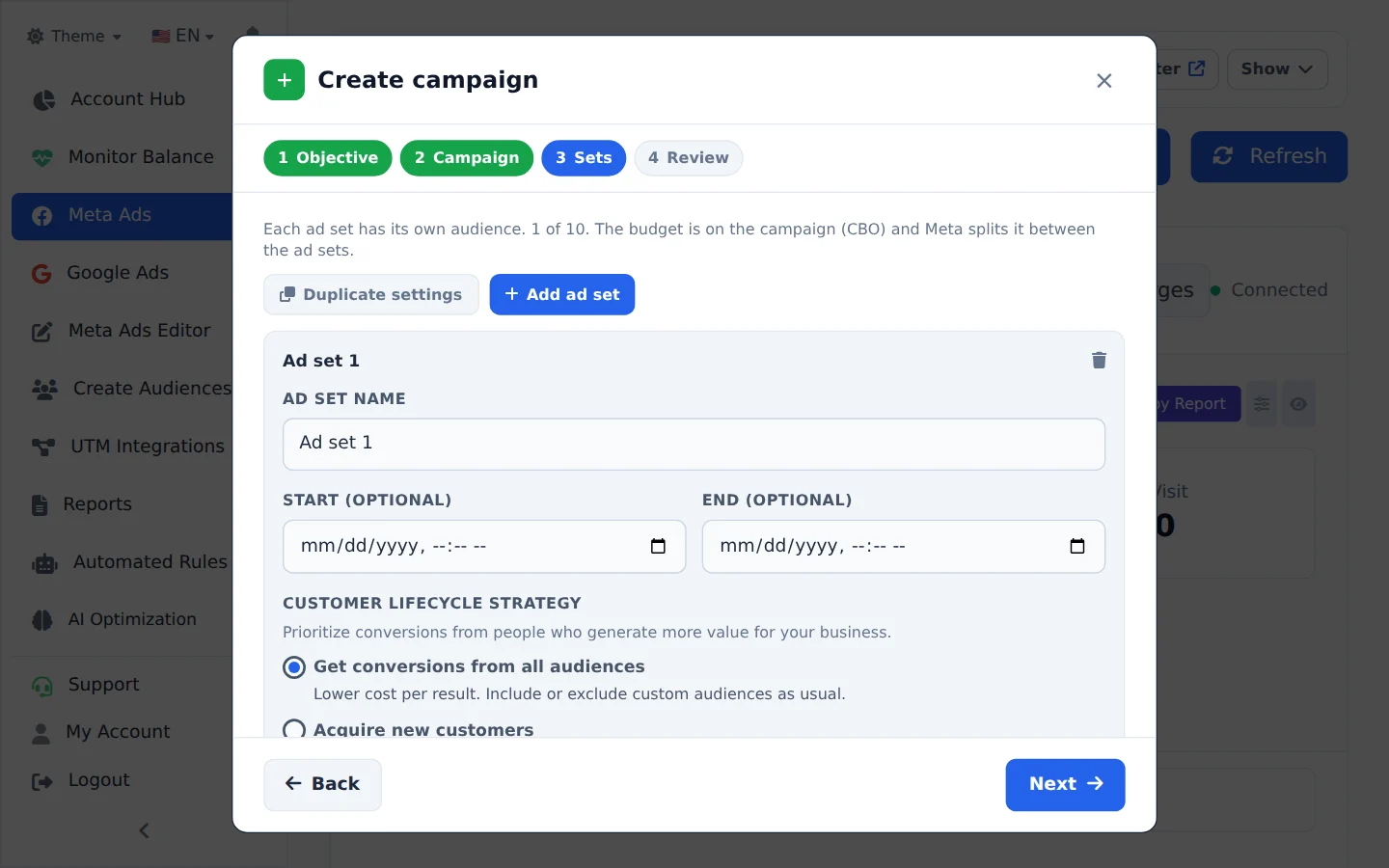
Set up the ad sets
Each ad set has a name, optional start and end dates and its own audience: location, age, gender, languages and interests. The phone system follows the chosen store (iOS for the App Store, Android for Google Play). Click Next.
- 5
Review and create
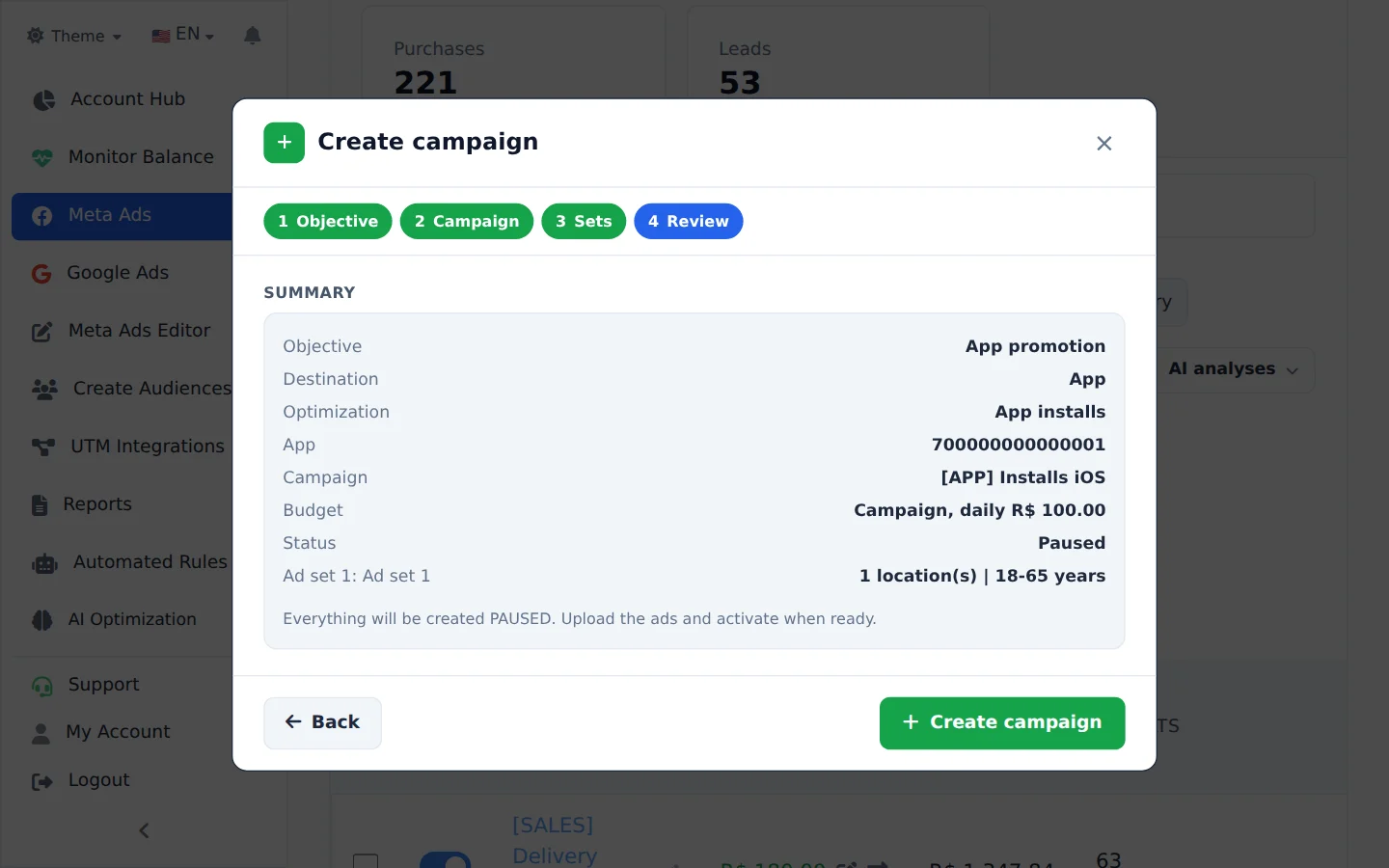
Check the summary and click Create campaign. Then open the Meta Ads Editor to upload the ads to the new ad sets. For the other store, repeat with its option.
One store per campaign
Meta rejects an ad set that mixes one store’s link with the other store’s system (a Google Play link in an iOS ad set, for example). That is why each campaign takes a single store.
How to know it worked
- The new campaign shows up in the Campaigns tab, with the App promotion objective. It is created paused: turn it on after uploading the ads.
- In the Meta Ads Editor, the campaign and ad sets are ready to receive the ads, with the Install now button.
If something goes wrong
| Symptom | Likely cause | What to do |
|---|---|---|
| The app is not on the list | It is not linked to this ad account in Meta | Choose Type another ID and enter the app ID, or allow the account to advertise the app in Meta itself |
| Meta rejects it on create | The app was not approved for ads or the account lacks permission | Check the app registration at developers.facebook.com and the account permission |
| Conversions with the app event does not show up | The app does not send events to Meta yet | Use App installs until the app logs events through the Meta SDK |
Frequently asked questions
How do I create an app campaign (App Store and Play Store) on Meta through Ads Editor?
Create the app campaign with the Create campaign wizard for Meta, in the Manager:
- In step 1, choose the App promotion objective and the Application destination.
- Choose the optimization: App installs, Conversions (to optimize for an in-app event, such as a purchase) or Link clicks.
- Enter the Application ID (the app ID registered with Meta) and the Store link (the app's URL in the App Store or Google Play).
- Follow the campaign and ad set steps, review and create. You upload the ads afterward in the Meta Ads Editor, as with other campaigns.
App Store and Play Store: each campaign takes one store link. To advertise on both, create one campaign for Apple and another for Google.
Before you start: the app must be registered with Meta, and the ad account must have permission to advertise that app. This is set up in Meta itself, outside Ads Editor. If the app doesn't appear or Meta rejects it, Meta's Help Center has the current steps.