
Meta Ads Editor
Schedule when a new ad starts
Upload the ad today and set the day and time it turns on by itself, in the ad account time zone.
Quick answer
In Meta Ads Editor, build the upload as usual and, next to Ad Status, check Schedule start. Pick the date and time, in the ad account time zone, and click Create Ads. The ad is uploaded paused and Ads Editor turns it on at the scheduled time. It works for any campaign objective.
Before you start
- Ads Editor turns on only the ad. The ad set and the campaign stay as they are: keep both active so the ad delivers on time.
- The time must be in the future and can be set up to 90 days ahead.
- It works for image and video uploads. The option does not show for catalog ads, and an ad created from an Instagram link cannot be scheduled.
Step by step
In this example, we leave the ads for a promotion ready to turn on Friday at 8 am.
- 1
Build the upload
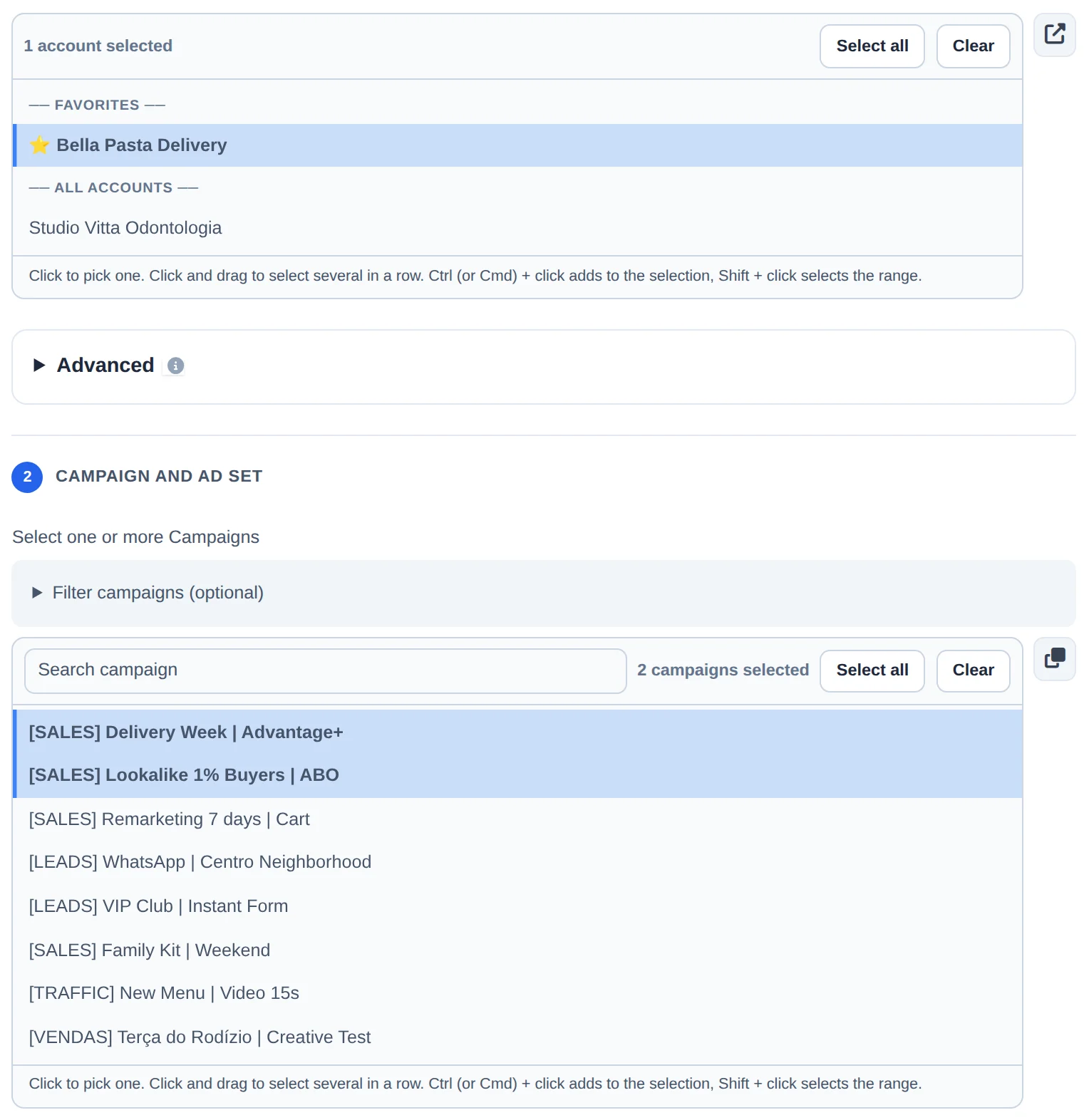
In Meta Ads Editor, pick the account, the campaigns and the ad sets, drop the creatives and fill in text, headline and link, as in Upload ads in bulk.
 12
- 1Ad account
- 2Campaigns
- 2
Check Schedule start
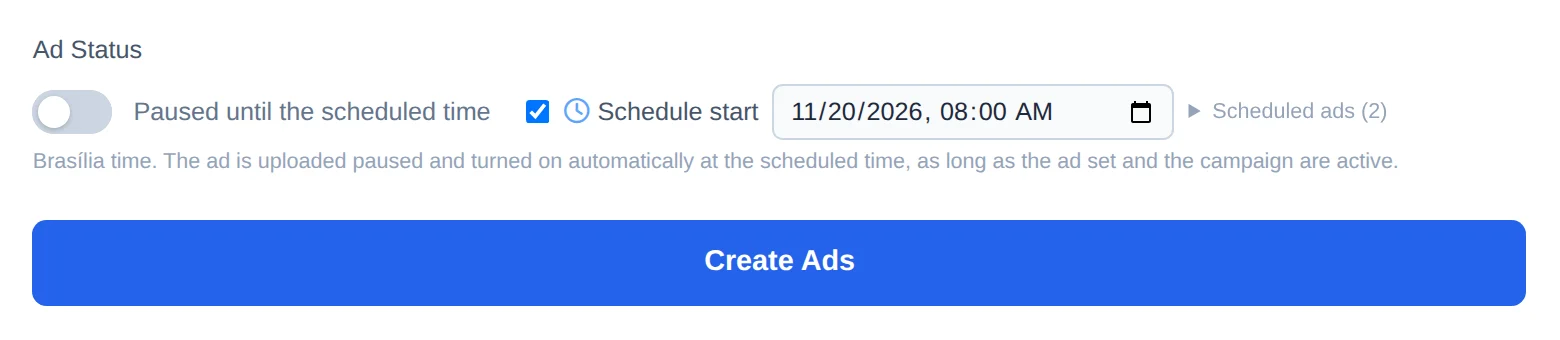
Under Ad Status, check Schedule start and pick the date and time. The field shows which time zone applies: the ad account one. With the schedule on, the status is locked on Paused until the scheduled time.
 123
- 1Schedule start
- 2Date and time, in the account time zone
- 3Paused until the scheduled time
- 3
Create the ads
Click Create Ads. The ads are uploaded paused and go through Meta review while they wait. At the scheduled time, Ads Editor turns each one on.
 12
- 1Scheduled time
- 2Create Ads
- 4
Check or cancel
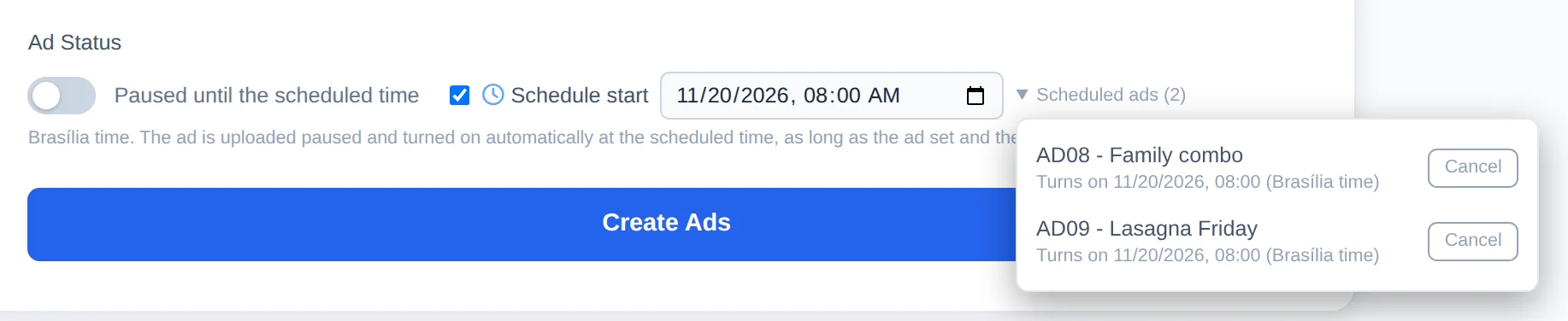
Scheduled ads, next to the option, lists the ones waiting, with the time each one turns on. Cancel removes the schedule and the ad stays paused. Turning the ad on by hand before the time or deleting it also ends the schedule.
 123
- 1Scheduled ads
- 2Time the ad turns on
- 3Cancel
Accounts in different time zones
In an upload to accounts in different time zones, each ad turns on at the time you typed in its own account time zone. If Ads Editor cannot read the account time zone, Brasília time applies, and the screen says so.
How to tell it worked
- The ad shows as paused in Meta Ads and in the editor Scheduled ads list, with the scheduled time.
- After the time, the ad shows as active and leaves the list.
If something goes wrong
| Symptom | Likely cause | What to do |
|---|---|---|
| The editor refused the time | It is in the past or more than 90 days ahead | Pick a time in the future, within the next 90 days |
| The ad turned on and did not deliver | The ad set or the campaign is paused | Turn on the ad set and the campaign in Meta Ads |
| A bell notification says the ad was not turned on | The activation failed or ran too long past the scheduled time, and Ads Editor does not turn on a late ad | Open the ad in Meta Ads and turn it on by hand |
| I cannot see Schedule start | The open tab is the catalog ad one | Scheduling works for image and video uploads, on the Create Ad tab |
Frequently asked questions
Can I schedule the day and time a new ad starts running?
Yes. In Meta Ads Editor, next to Ad Status, check Schedule start and pick the date and time, in the ad account time zone. The ad is uploaded paused and Ads Editor turns it on at the scheduled time. It works for any campaign objective.
Rules:
- The time must be in the future and can be set up to 90 days ahead.
- Only the ad is turned on. The ad set and the campaign stay as they are: keep both active.
- It works for image and video uploads. Catalog ads and ads created from an Instagram link cannot be scheduled.
- Under Scheduled ads you see the ones waiting and can cancel them. A cancelled ad stays paused.
- If the activation fails or runs too long past the scheduled time, the ad is not turned on and you get a notification in the bell.
It also works through MCP: ask for the start date and time when uploading the ad.
To schedule a copy of a campaign or ad set, use Schedule start (optional) in the Duplicate window.