
Account Center and balance
Create a spending alert
Get notified when an account spends above or below your daily reference, and test email and in-app delivery.
Quick answer
Open Monitor Balance → Spending alerts → New alert. Choose an account, a daily reference, and the percentage above or below that reference. Choose email delivery if needed and save. New alerts are active automatically. Use Test alert to check delivery.
Watch the walkthrough 0:31
Step by step
Example with a fictional account in Brazilian reais and a daily reference of BRL 100.
- 1
Open Spending alerts
Open Monitor Balance in the menu and click Spending alerts. This page lists the alerts you have configured.
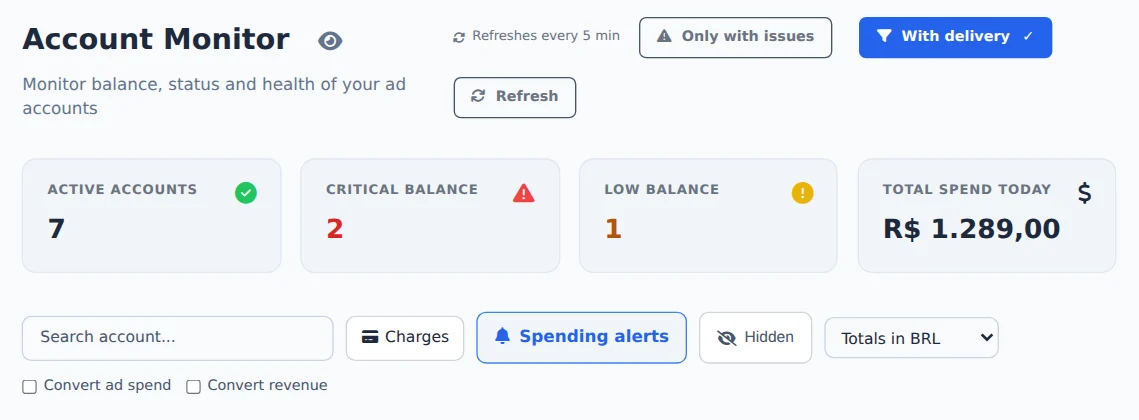 1
- 1Spending alerts
- 2
Choose one account
Click New alert. Under Apply to, keep One account and select the account by name and ID. Check whether it belongs to Meta or Google.
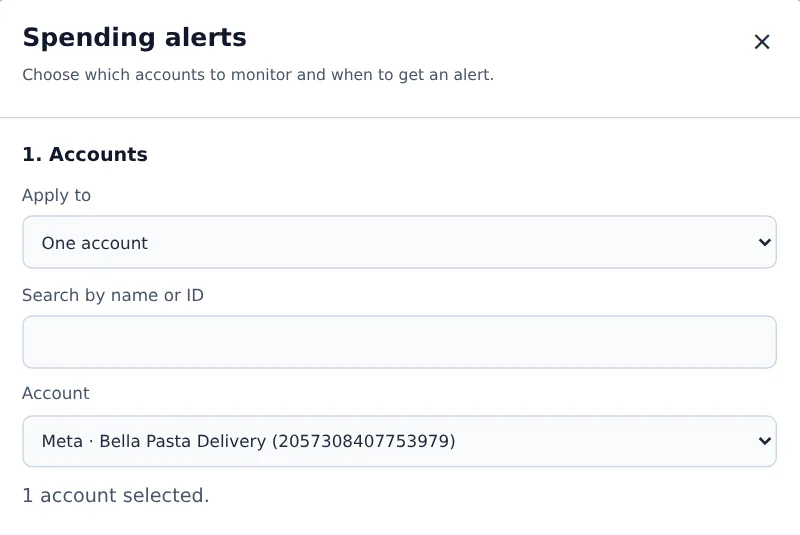 12
- 1Apply to
- 2Account
- 3
Set the daily reference
Under Compare spending with, choose A daily amount I set and enter 100. Use the account currency: BRL 100 in this example. This is only an alert reference; it does not change the budget. You can also use Average of the previous 7 days.
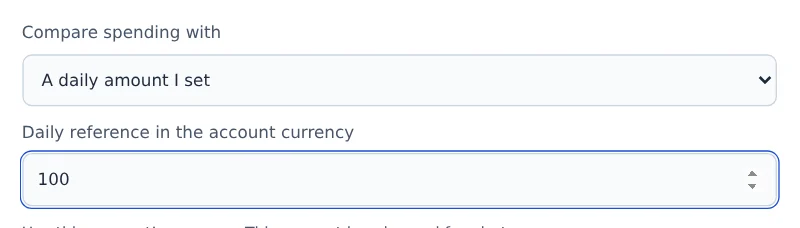 12
- 1Reference
- 2Daily amount
- 4
Choose when to receive an alert
Keep Spending above expected enabled and enter 20 under Increase of (%). With a BRL 100 reference, the alert starts when today’s spend reaches BRL 120. With Spending below expected enabled at 20%, it checks whether yesterday’s spend was BRL 80 or less, from 6 am in the account time zone.
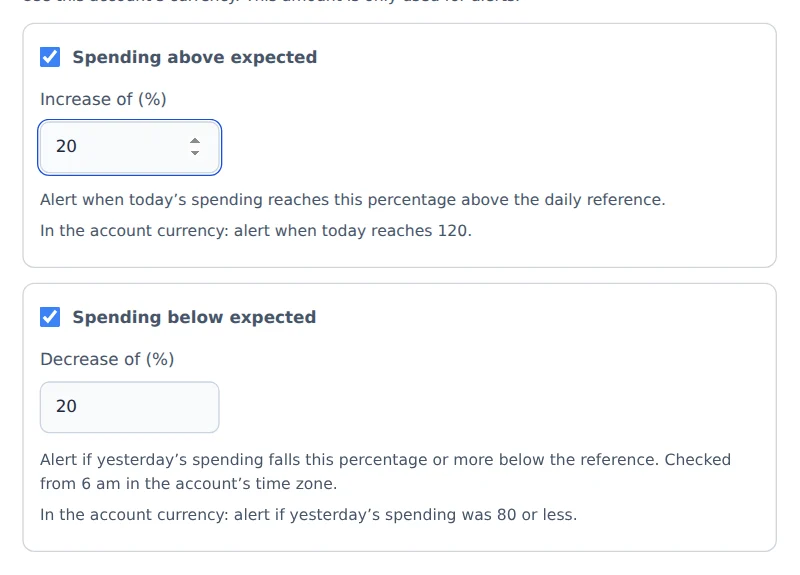 12
- 120% increase
- 2Below-expected alert
- 5
Select email and save
The alert appears in the app. Push depends on notification preferences and device permission. Select Also receive email alerts to get automatic emails at your registered address, then click Save alert. A new alert is active immediately. On the confirmation screen, click View my alerts.
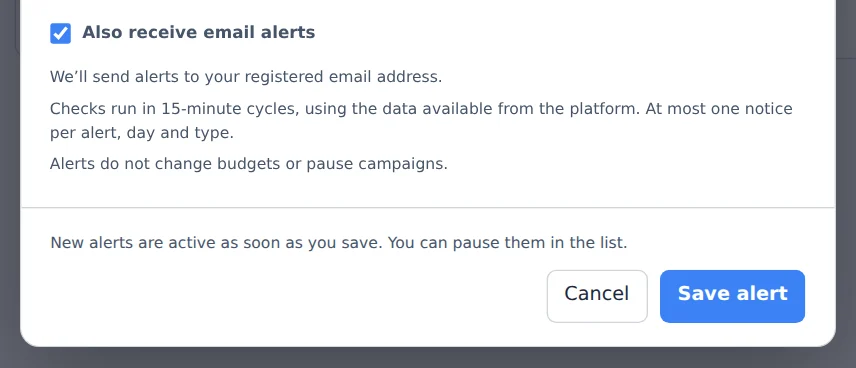 12
- 1Email delivery
- 2Save alert
- 6
Test and manage the alert
Click Test alert. It sends a simulation to the app and your registered email, even when the alert is paused or automatic email is disabled. The subject includes [TEST] and the account name. Amounts are illustrative. Use the switch to pause or enable the alert and Edit, just below it, to change its criteria.
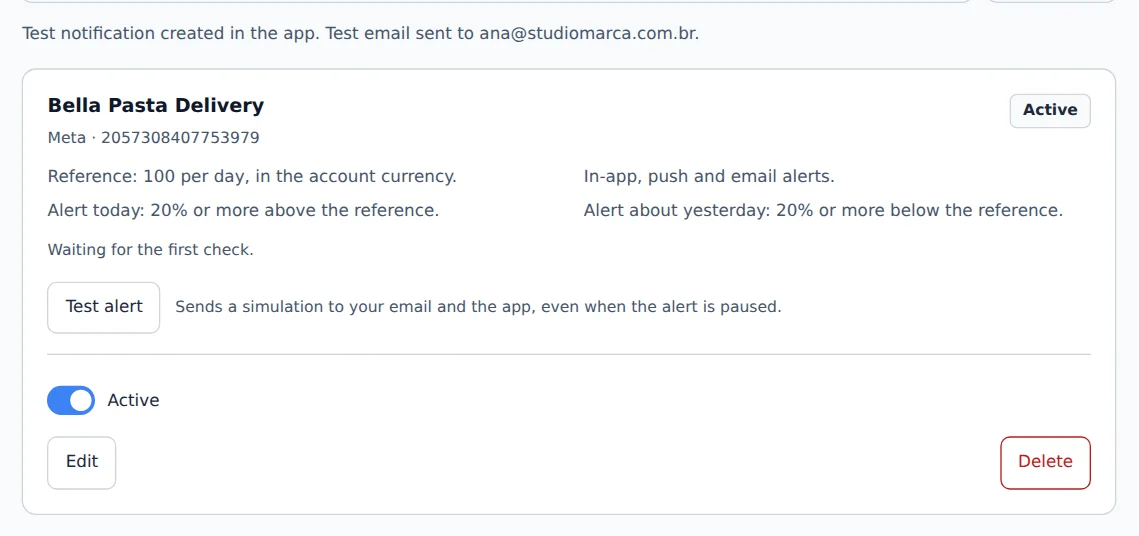 123
- 1Test alert
- 2Enable or pause
- 3Edit
An alert does not change campaigns
It sends a notice. It does not pause campaigns, change budgets or top up your balance. The test does not wait for a real threshold and does not consume a real daily alert.
When automatic alerts run
- Checks run in 15-minute cycles, subject to platform data availability. Each alert sends at most one notice per day and direction.
- The seven-day average includes zero-spend days and requires at least three days with spend in the seven days before the date being checked. Without enough history, use a fixed reference for one account.
- Above compares today’s spend with the daily reference. Below checks yesterday, from 6 am in the account time zone.
- Wait one minute between tests. If only one channel succeeds, the page tells you which delivery failed.